As-Builts
Redline Storage and Management
Storage Protocol : After field technicians and engineers complete their markups (redlines during L3 PTP), the redlines will be saved in the Bluebeam project folder labeled 'Completed Redlines'.
Requirements:
- Consistent file naming and categorization
- Tracking responsible personnel
- Ensuring accurate version control
Quality Review and Question Resolution
Engineer Review Process : Once redlines are complete, the assigned engineer will review all redlines on the assigned drawing and generate a list of questions (if needed).
Review Activities:
- Systematic examination of each marked-up drawing
- Cross-referencing field conditions with design specifications
- Documentation of unclear or ambiguous markups
Question Resolution
Questions will be reviewed with the individual that did the redlines in a meeting (either in-person or Teams meeting). Once all answers have been answered to both parties' satisfaction, as-builts will be started.
Exception: As-builts may be started before all questions are answered if, and only if, the engineering team lead and/or engineering manager approve.
Tracking As-Built Progress
- Track the completion percentage and assign responsibility for each as-built drawing set within the EDL.
- List each control drawing set and SOO on separate lines in the EDL.
- Label sets as As Built in progress to indicate ongoing work.
- Do not create a dedicated as-built tab in the Instrument list.
- Record all notes exclusively in BlueBeam and the EDL.
Bluebeam Process
Communication Protocol:
- Use the Reply function in the markups list for questions, rather than adding new markups to the redlines.
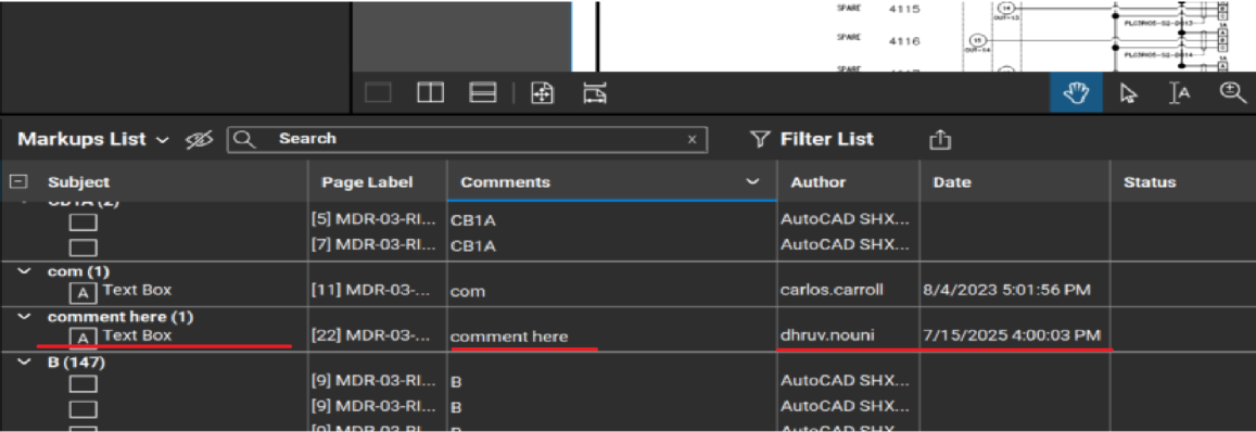
- Use the Status column in the Markups List to track redlines that are completed or rejected.
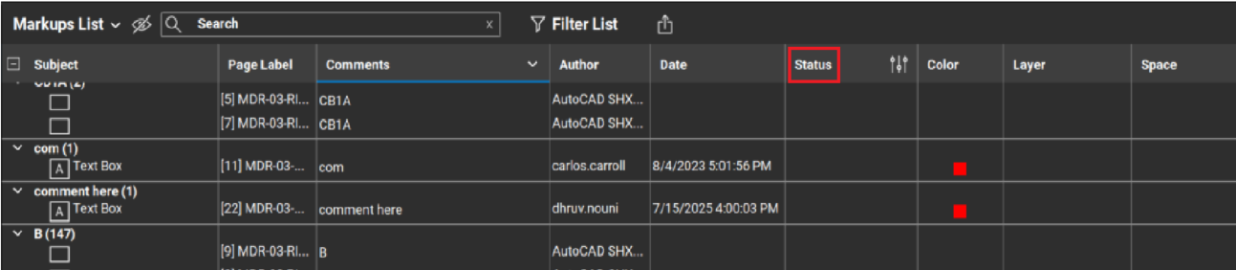
- It's better than a checkmark for identifying who is completing the redlines.
IO Counts
Keep IO counts to date as drawings are updated including slot#, IO# and tags. IO Counts will be included in O&M on case-to-case basis.
Instrument List Tables
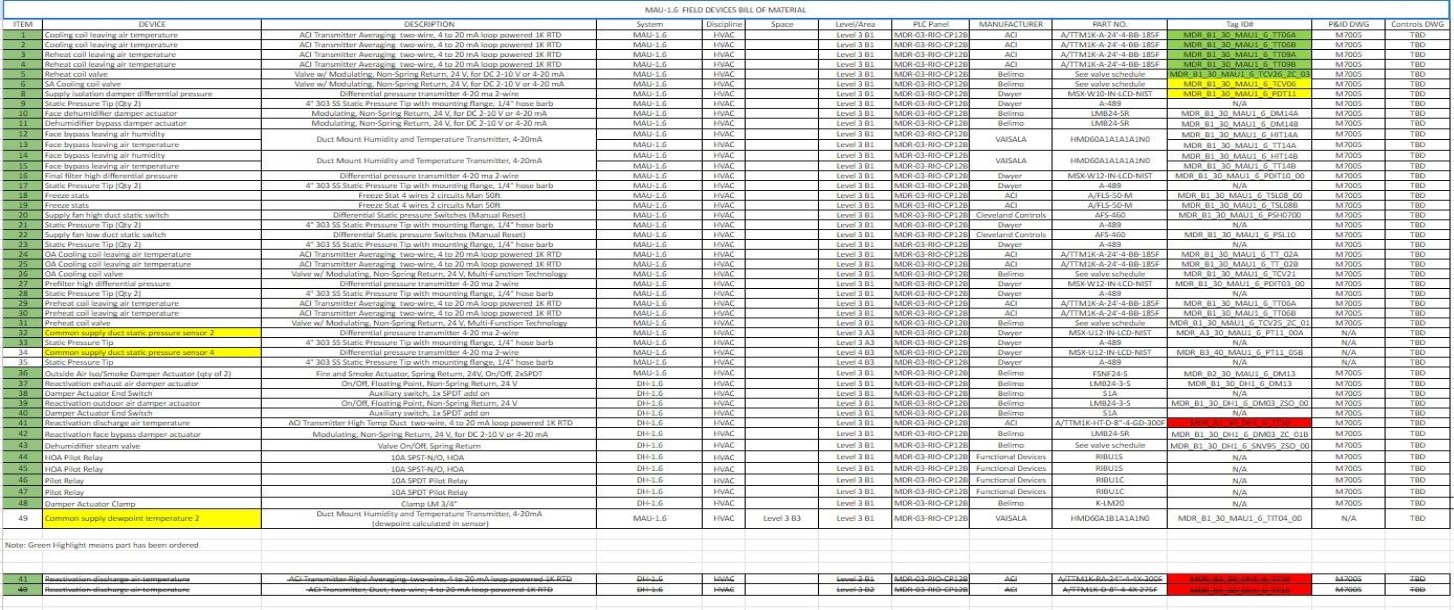
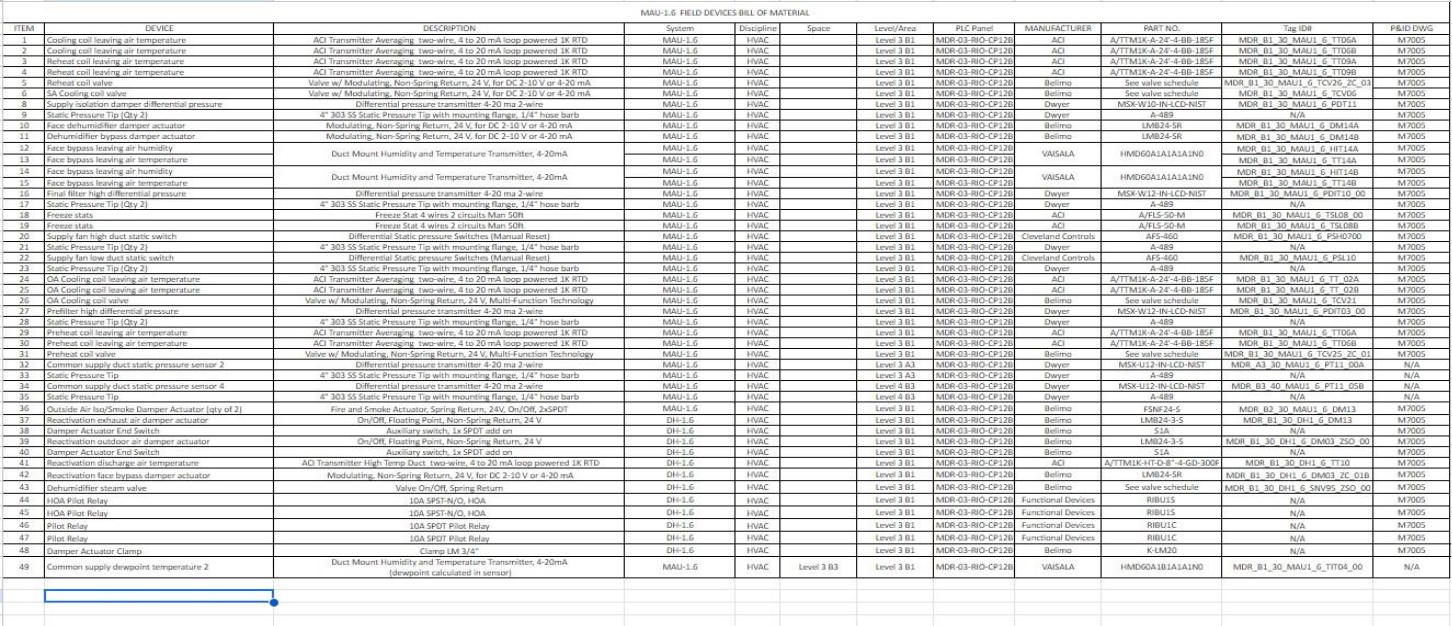
Clean up instrument lists to print. Remove crossed out parts and highlighting at the end of the project. Fill in any TBDs or delete. Part of O&M.
Before:
After:
AutoCAD Process
Drawing Updates
- Save the most recent drawing set in the Archive folder.
- Apply all required updates to the drawings based on BlueBeam markups.
- Update the title block with the As-Built date and remove the Rev box if applicable.
- Do not modify the Revisions table.
- For DDFD drawings, remove any content outside the print area in the model space.
Sequence of Operations (SOO)
- Incorporate all changes from BlueBeam markups and remove any highlight annotations.
N Drive Folder Management
File Creation
- Export drawing sets and sequences of operations as PDFs.
- Include As Built and the completion date in each filename: format as xxxx_As Built_date.pdf
- Store these files in the As-Built PDFs subfolder within the engineering directory.
Upon Project Completion
- When a drawing set or SOO is finalized, update the EDL status to As Built complete.
- Once all as-builts for the project are finished, notify the engineering team lead or engineering manager.
Final Project Delivery
- Compile drawings, sequences, instrument lists, product data, and IO counts (when required) into the O&M manual for the client.